Guide
Everything Icon Library can do, step by step. Use the contents to jump to a topic.
How to use it
-
Choose a set in the Select button. Nothing is
downloaded until you do, and each set stays cached while the page is
open.
-
Narrow it down with All categories (you can
tick several) and the search field, which matches icon names.
-
Set the style in the Size, Stroke and Color controls.
They apply to everything you copy, download or send to the
scratchpad, and the preview follows the stroke and color. Stroke only
exists in Lucide and Feather; emojis keep their own colors.
-
Click an icon to copy its SVG (or the emoji
character). Right-click copies the alternative: the
icon name for vector sets, or the emoji wrapped in an SVG.
-
Use the buttons on each card:
- + adds the icon to the scratchpad;
-
⋯ opens downloads (SVG, PNG at the chosen size) and
Copy as React component;
-
the pencil (all vector sets) opens the icon
editor.
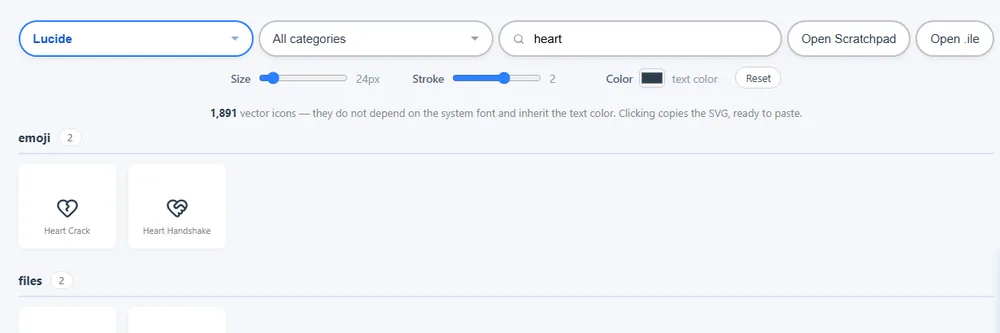 The icon set, categories, search and style controls.
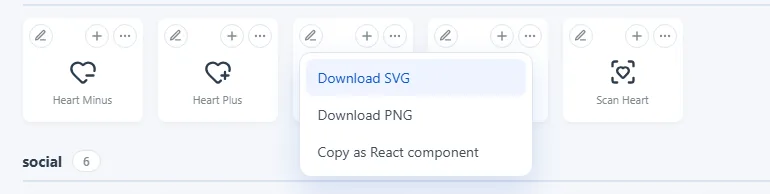 Card buttons: pencil (edit), + (scratchpad) and ⋯ (downloads and React).
The icon editor
The pencil on a card opens the icon on a grid, ready to change. The icon
arrives with the size, stroke and color you chose.
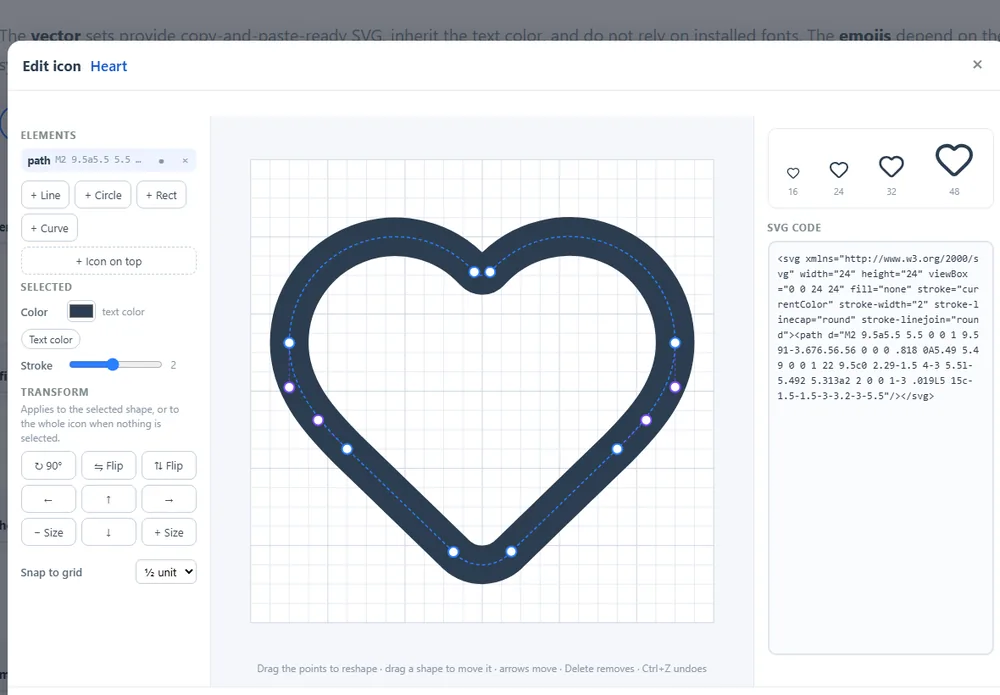 The editor: shapes on the left, points on the grid, code and previews on the right.
-
Reshape: select a shape in the list or on the grid and
drag its points. Curves show their control points, linked by dashed
lines; moving a point of the curve brings its controls along.
-
Move: drag a shape, or use the arrow keys or buttons.
Points snap to the grid (1, ½ or ¼ unit, or off).
-
Transform: rotate 90°, flip, and grow or shrink — the
selected shape, or the whole icon when nothing is selected.
-
Add and remove: new lines, circles, rectangles and
curves; hide a shape to see the icon without it, or delete it.
-
Combine icons: + Icon on top searches
Lucide, Feather and Bootstrap and lays another icon over the current
one, resized to the same grid and keeping its own style — a filled
Bootstrap star can sit inside an outline Lucide heart. Each icon gets a
heading in the list that selects it whole, to move, rotate or resize
it.
-
Colors: give each shape, or each icon, its own color
and stroke width in the Selected panel. Text color
goes back to inheriting the color of the surrounding text; shapes with
their own color keep it wherever the icon is pasted.
-
Save and continue later: Save .ile downloads
the project as a
.ile file — a small text file that keeps
what plain SVG loses: which icon each shape came from, hidden shapes
and the name. Open it again with Open .ile, in the editor or
next to the search on the main page, or drop the file on the editor.
Opening a file while editing can be undone.
-
Code: the SVG code beside the grid follows every
change, and you can also type in it. Previews show the result at 16,
24, 32 and 48 pixels.
-
Undo and Redo (Ctrl+Z, Ctrl+Y), then
copy, download or send the edited icon to the scratchpad. Lucide and
Feather icons can also be opened in
Lucide Studio,
an independent online editor with more advanced tools.
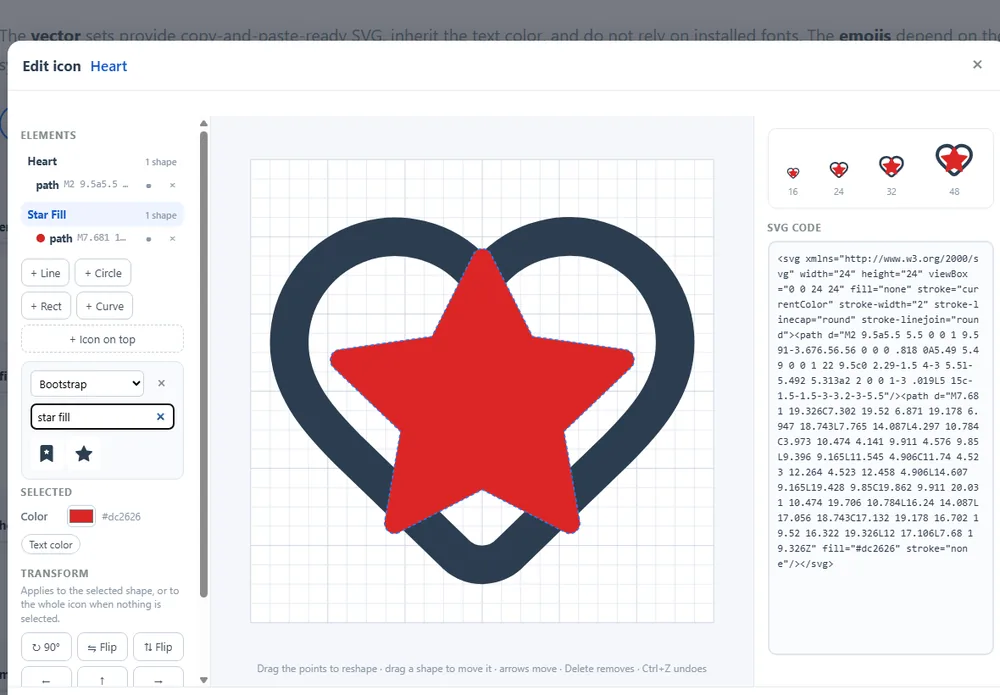 A filled Bootstrap star placed over an outline Lucide heart, with its own color.
The scratchpad
The Scratchpad tab on the right edge opens a drawer where you
can collect icons while you browse. Each icon is added as an HTML comment
with its name followed by its SVG, so the result is ready to paste into
a project. You can also type freely. Copy all copies everything
and Clear empties it. The text is kept in your browser, so it is
still there next time.
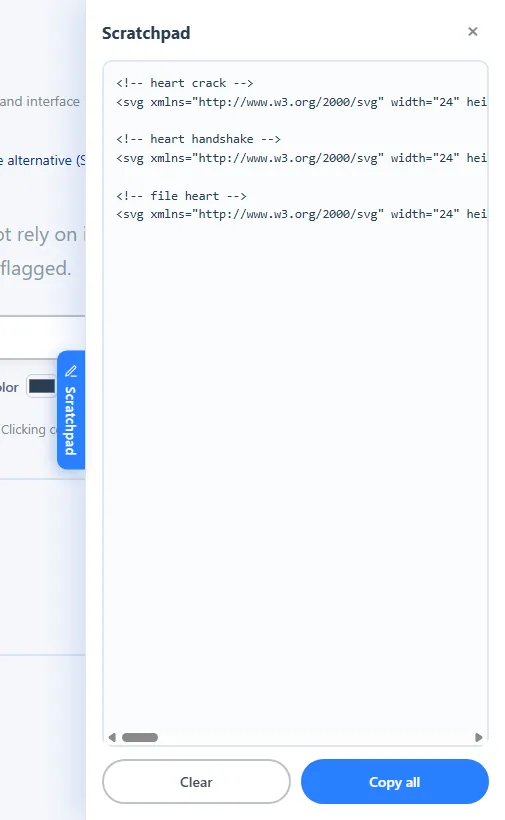 The scratchpad collects icons as an HTML comment followed by the SVG.
For AI assistants
AI assistants can create an icon and give it to you as a link that opens
it here, in the editor, ready to adjust. The icon travels inside the link
itself, after the #, so it is never sent to our server. In
the editor, Share link makes the same kind of link for your own
project. Instructions for AIs:
llms.txt.
Sharing a search
The address bar follows what you are looking at — for example
?set=lucide&q=arrow. Copy the address to share a search
or bookmark it.
Keyboard shortcuts
| Keys | What it does |
|---|
| Click | Copy the icon (SVG or emoji) |
| Right-click | Copy the alternative (name, or the emoji as SVG) |
| Esc | Close panels, menus, the scratchpad and the editor |
| ↑ ↓ | Move through the icon sets in the set list |
| ← → ↑ ↓ | Editor: move the selected shape, icon or the whole drawing |
| Delete / Backspace | Editor: delete the selected shape or icon |
| Ctrl+Z | Editor: undo |
| Ctrl+Y / Ctrl+Shift+Z | Editor: redo |
Theme, language and preferences
The page follows your system's light or dark theme; the button in the
header switches it. The language is detected from your browser and can be
changed in the selector next to it. Both choices, the size, stroke and color
settings and the scratchpad text are kept in your browser, so they are still
there next time.
Buy me a coffee
Icon Library is free. If it helps you, the Buy me a coffee button
(about US$ 3, paid securely through Stripe) helps pay for the server, the
domain and the tools that keep it running. As a thank-you, the site shows you
no ads for 30 days from the payment.
After paying you get a supporter code. To remove the ads on
another device too — up to 3 — open the same button there and enter the
code. The button only appears when payments are available.
Publishing to Iconlibrary
Iconlibrary is the community icon set: icons drawn in the editor by
supporters, reviewed and shared with everyone. It appears in the set list
like the others.
- Open an icon in the editor and draw or adjust it.
-
Click Publish to Iconlibrary, give it a name, choose up to 3
categories and, if you like, a credit (your name or site).
-
Your supporter code is filled in automatically on the device where you
bought the coffee; on another device, type it.
-
Confirm that you created the icon (or have the right to share it) and
release it under the MIT license, then send it. It appears in
Iconlibrary after review.
Only basic shapes can be published — lines, circles, ellipses, rectangles,
polylines, polygons and paths. Brand logos and copies of other icons are not
accepted.